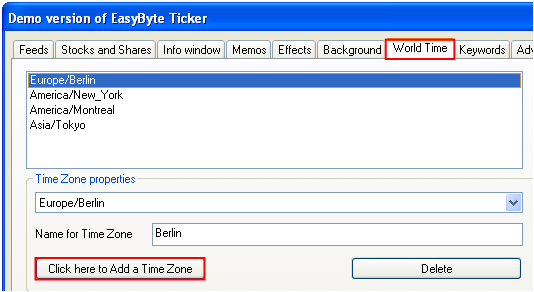
In order to add a new time zone, choose “Options” from the main menu, click on the “World Time” tab and then click on the “Click here to Add a Time Zone” button.
Figure 77: Adding a Time Zone (step 1/3)
The following screen will be displayed.
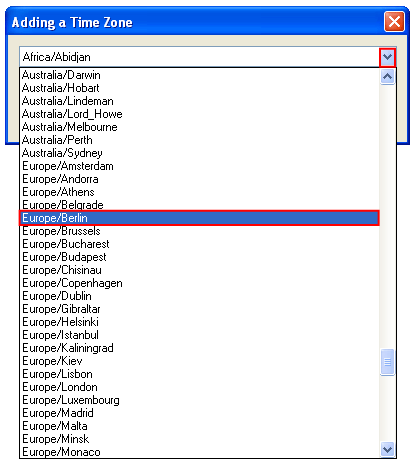
Figure 78: Adding a Time Zone (step 2/3)
Click on the arrow on the right to open the menu containing the time zones and select the desired Time Zone.
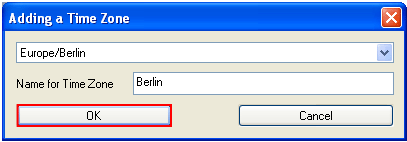
Figure 79: Adding a Time Zone (step 3/3)
After selecting the desired time zone, enter the name for the new time zone and click on the “OK” button to complete the procedure of adding a new time zone.
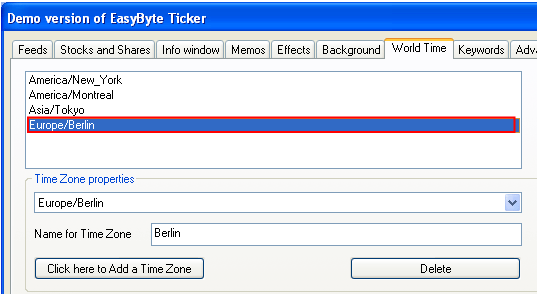
Figure 80: The new time zone successfully added
The new time zone will be added to the list of zones. The
new time zone will also be displayed once you click on the time zone icon .
.
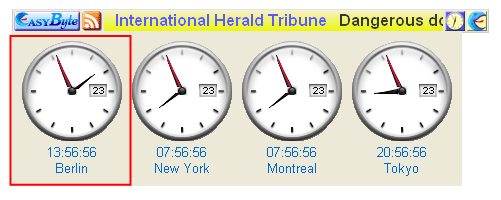
Figure 81: The new time zone displayed after clicking on the time zone icon