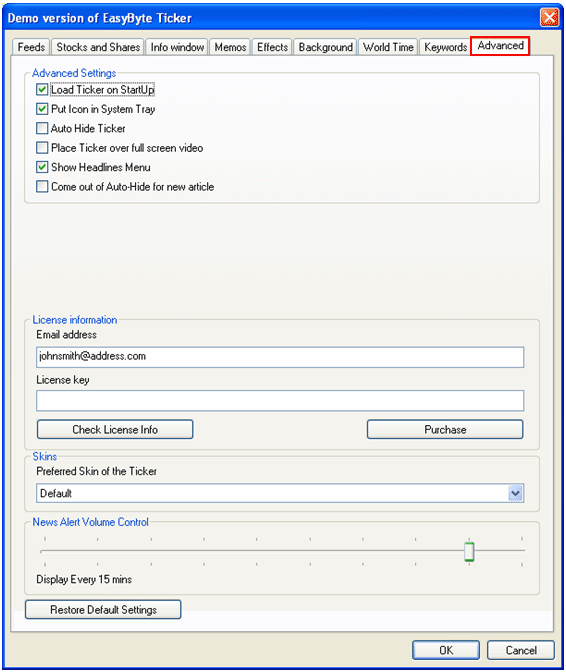
In order to start managing “EasyByte News Ticker” advanced settings, choose “Options” from the main menu (see Figure 35) and then click on “Advanced”.
Figure 93: Managing Advanced Settings
The following parameters are available inside this screen:
Advanced Settings
Load Ticker On Startup – select this option if you want the ticker to load when Windows starts
Put icon in System Tray – select this option if you wish to put the EasyByte Ticker icon in the system tray so you could access it easily
Auto Hide Ticker – select this option if you want to hide the ticker immediately (note: this is the same as selecting the "Now" option in the Auto Hide menu; selecting one will select the other and vice versa)
Place Ticker over full screen video – select this option if you want to force displaying of the ticker in case a full screen video is playing
Show Headlines Menu – select this option if you wish to display the headlines menu (see section Using the Headlines Menu for further information about this menu)
Come out Of Auto Hide for new article
License information
Email address – input field for entering your email address
License Key – input field for entering the license key in order to activate the product once the license has been purchased
Check License Info – enter the license key and click on this button to check your license
Purchase – option for purchasing the application; the “EasyByte” website will be loaded where you will be able to complete purchase
Skins – pull down menu for choosing the ticker preferred skin
Restore Default Settings – click on this button to restore all changes to default settings
After setting the desired parameters, click on the “OK” button in order to save the changes.