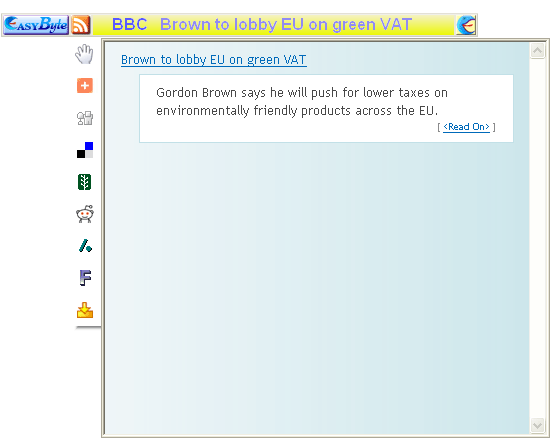
The info window is displayed once you place your mouse over the news item headline and displays the news item summary.
Figure 55: Info window
In order to start managing the layout of the info window, choose “Options” from the main menu (see Figure 35) and then click on “Info Window”.
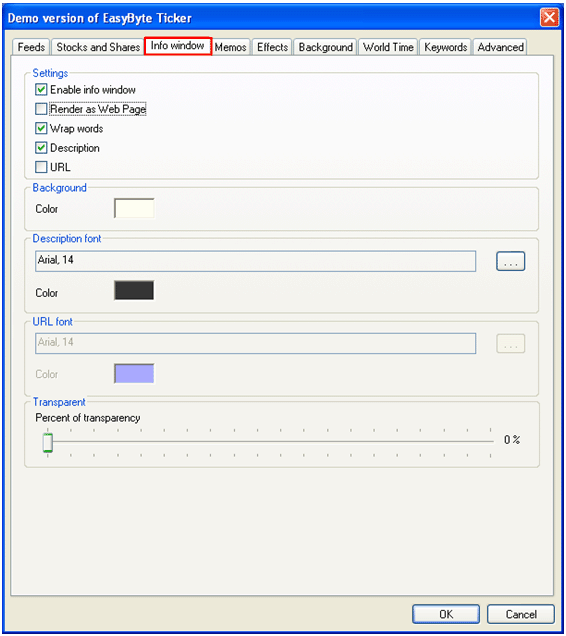
Figure 56: Setting up Info Window
The following parameters are available inside this screen:
Settings
o Enable info window – select this checkbox to enable the info window or un-select to disable it
o Render as Web Page – select this checkbox in case you wish to render the info window as a web page (note: the remaining three parameters will be disabled as those do not apply to the web page mode)
§ see Figure 58 for an example of what the info window rendered as a web page looks like
§ see Figure 57 for an example of what the standard info window looks like
o Wrap words – select this checkbox if you wish to wrap the words inside the info window
o Description – select this option in order to enable the description
o URL – select this checkbox in order to display the URL of the news item inside the info window
Background – click on the color square in order to set the desired background color; the color men will be displayed
Description font
– click on this icon  open
the window for setting the desired font type and size
open
the window for setting the desired font type and size
Color – click on this square in order to set the desired font color for the description; the color menu will be opened
URL font
Color – click on this square in order to set the desired font color for the URL; the color menu will be opened
Transparent
Percent of transparency – move the slider in order to set he desired level of transparency for the info window
After setting the desired parameters, click on the “OK” in order to save the changes.

Figure 57: Example of the standard info window
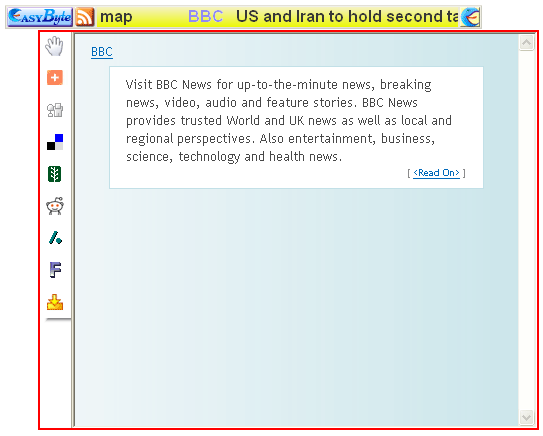
Figure 58: Info window rendered as a web page