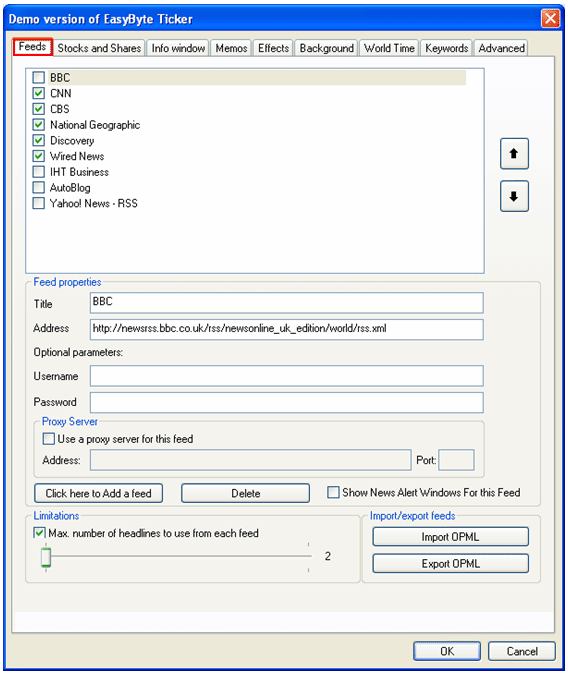
In order to start managing the feeds, choose “Options” from the main menu (see Figure 35) and click on the “Feeds” option.
Figure 37: Managing the feeds
The following parameters are available inside this screen:
Feeds – five feeds are enabled inside the ticker by default and you can choose to select any of the available feeds inside this part of the screen; after you click on the “OK” button, the selected feeds will begin to show inside the ticker
 - options for setting the
desired order of appearance for the feeds
- options for setting the
desired order of appearance for the feeds
Feed properties
Title – field displaying the title of the feed
Address – field displaying the address the feed is retrieved from
Optional parameters – parameters for entering username and password (note: some feeds require authentication prior to being able to use them - e.g. corporate intranets)
Proxy Server – if any of the feed requires the use of the proxy server, select that feed in the list, select the “Use a proxy server for this feed” checkbox and define the proxy server address and port
Click Here to Add a feed – option for adding a feed (see section Adding a new feed)
Delete – option for deleting a feed (see section Deleting the existing feed)
Show News Alert Windows for This Feed – select the desired feed and then select this checkbox if you wish the ticker to open a news alert window every time a new article is downloaded from that feed (see section Enabling and Managing News alert Window)
Limitations
Max. number of headlines to use from each feed – select this checkbox to display a slider for setting the maximum number of headlines which will be used for each of the feeds
Import OPML – option for importing a feed definition from a file (see section Importing OPML – feed definition)
Export OPML – option for exporting a feed definition into a file (see section Exporting OPML – feed definition)