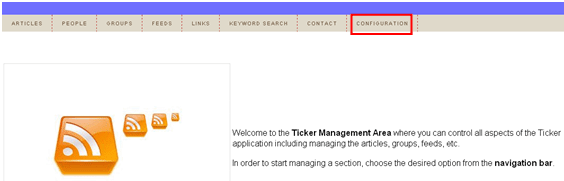
The “Configuration” section of the “Web Admin” area contains parameters for integrating “Web Admin” with Corporate Active Directory. In order to start managing the Web Admin configuration, choose option “Configuration” from the main menu.
Figure 75: Choosing the "Configuration" option
The following screen will be displayed.
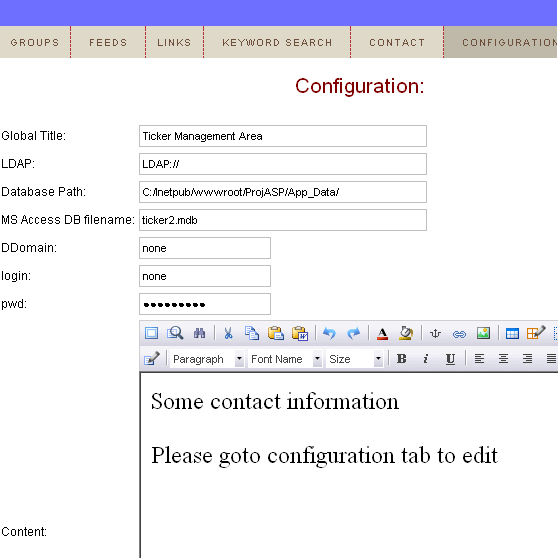
Figure 76: Managing the web admin configuration (screen 1/2)
These settings allow for the Integration with a Corporate Active Directory to take place. The following parameters are available inside the first part of the screen:
Global Title – use this field to change the title displayed in the header of the application (e.g. “Global Management Area”)
LDAP - this is the LDAP string, that is used for telling the Web Admin area how to connect to your Active Directory, a sample LDAP string would be: "LDAP://mycompany.com/dc=mycompany,dc=com"
Database Path – field for defining the path to the database
MS Access DB filename – the field for defining the MS Access database filename
DDomain - this is the main Active Directory Domain (e.g. domain.com)
login – this is the User ID for a user account that has read only access to the Active Directory
pwd – this is the password for the user account that has read only access to the Active Directory
Content- the second part of the screen contains the WYSIWYG editor for defining the “Content” field which is actually the content of the “Contact” page.
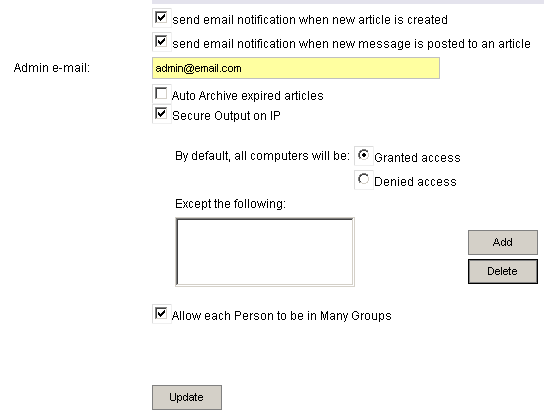
Figure 77: Managing the web admin configuration (screen 2/2)
The following parameters are available inside the second part of the screen:
Send email notification when new article is created – select this checkbox if you wish to receive an email notification every time a new article has been created
Send email notification when new message is posted to an article – select this checkbox if you wish to receive an email notification every time a new message is posted to the article
Admin e-mail – enter the email address notifications will be sent to
Auto archive expired articles – select this option if you wish to automatically move all expired articles to the archive
Secure Output on IP - this allows you to specify that the RSS output can either only go to specific IPs or can go to all IP's except some you specify
By default, all computers will be – select application behavior regarding the visitors
Granted access – select this option to allow access by default
Denied access – select this option to deny access by default
Except the following – use this section of the screen to define exceptions to the rule; e.g. if you allow access to everyone, use this section to deny access to specific IP addresses, by using the “Add” button (note: you can use the “Delete” button subsequently to allow access to that IP)
Allow Each Person to be in Many Groups – select this option to allow users to belong to more than one group